How to Add Google Drive to Your New Tab Page in Chrome
Add Google Drive to your Chrome new tab page with New Tab Widgets, then search Drive files, open recent documents, upload files, and manage items from your dashboard.
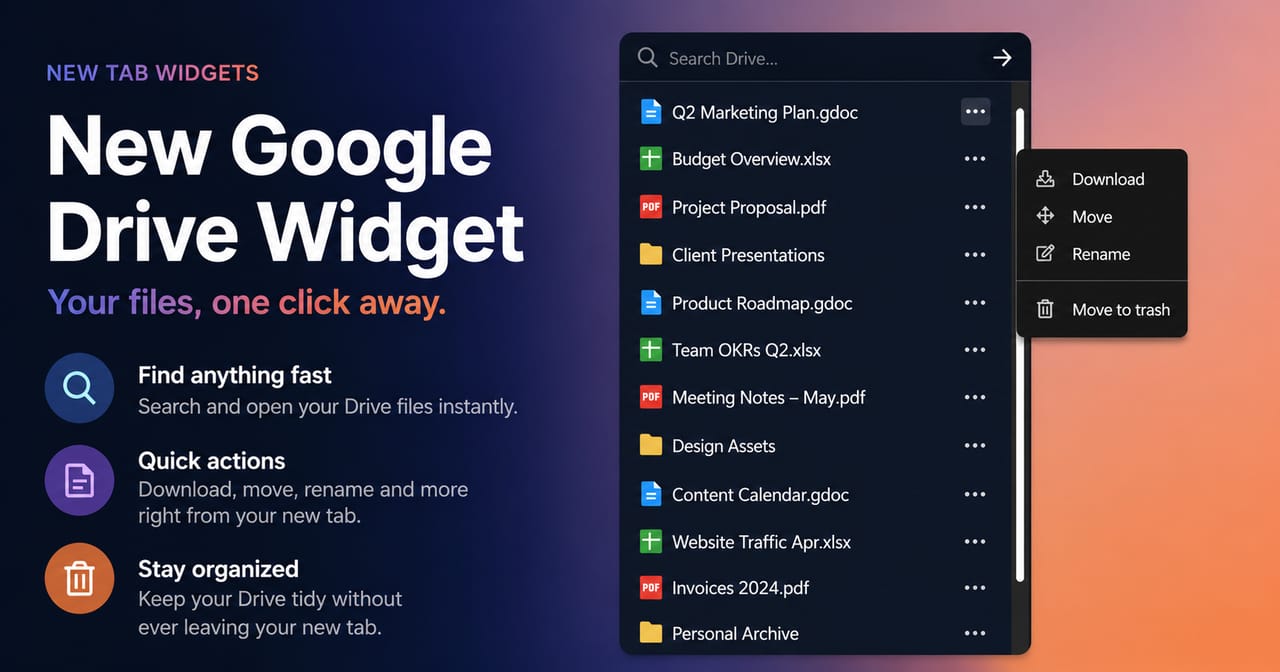
You can add Google Drive to your Chrome new tab page with New Tab Widgets by installing the extension, adding the Google Drive widget, and connecting your Google account. The widget lets you search Drive files, open recent documents, upload files, and manage Drive items from the dashboard you already see throughout the day.
Google Drive is where a lot of everyday work ends up: project notes, reports, spreadsheets, contracts, exports, images, shared folders, and the files you only need for ten seconds but still have to find quickly.
The problem is the small bit of friction around getting back to the right file. Open Drive, wait for it to load, search, scan results, open the document, then return to what you were doing. That is fine once. It gets annoying when you repeat it all day.
Adding Google Drive to your new tab page gives you a faster way to search files, open recent documents, and upload new files from the page you already see constantly. If you are here specifically for the Drive widget, it is worth knowing up front that Google Drive is a Pro widget in New Tab Widgets.
The extension installs for free, but adding and using the Google Drive widget requires New Tab Widgets Pro. If you want to compare plans first, you can view pricing.
Why Add Google Drive to Your New Tab Page?
The biggest reason is simple: faster access to the files you already use.
Most people open new tabs constantly throughout the day. If Google Drive is where your documents, spreadsheets, and shared files live, your new tab page is a natural place to keep Drive close.
Adding a Google Drive widget to your new tab page helps because it lets you:
- Search Drive files instantly without opening Google Drive first
- Open recent files faster from your dashboard
- Upload files by dropping them onto the widget
- Keep important Drive views visible alongside your calendar, notes, links, and inbox
- Reduce tab hopping when you only need one document or folder
It also fits the way many browser-based workflows already happen. Your work probably moves between email, documents, meetings, notes, links, and file storage. Putting Google Drive on your dashboard makes that loop feel much less scattered.
Google Drive New Tab Widget Features
With the Google Drive widget in New Tab Widgets, you can:
- Search Google Drive files directly from your new tab page
- See recent Drive files when the search box is empty
- Open the first result from the search bar
- Click any file to open it in Google Drive
- Upload files by dragging and dropping them onto the widget
- Download supported files
- Move files into another folder
- Rename files
- Move files to trash
- Add multiple Drive widgets for different workflows
That last point is especially useful.
Instead of having one general Drive view, you can create separate widgets for different parts of your work, such as:
- Client files with a default search like
client - Invoices with
invoice - Reports with
report - Shared project folders with a team or project name
That means one widget can act like a quick launcher for current project files, while another can stay focused on finance documents, marketing assets, or anything else you search for often.
The Google Drive widget was added in New Tab Widgets v1.15, alongside the Bookmarks widget, Gmail account improvements, and the new web app version.
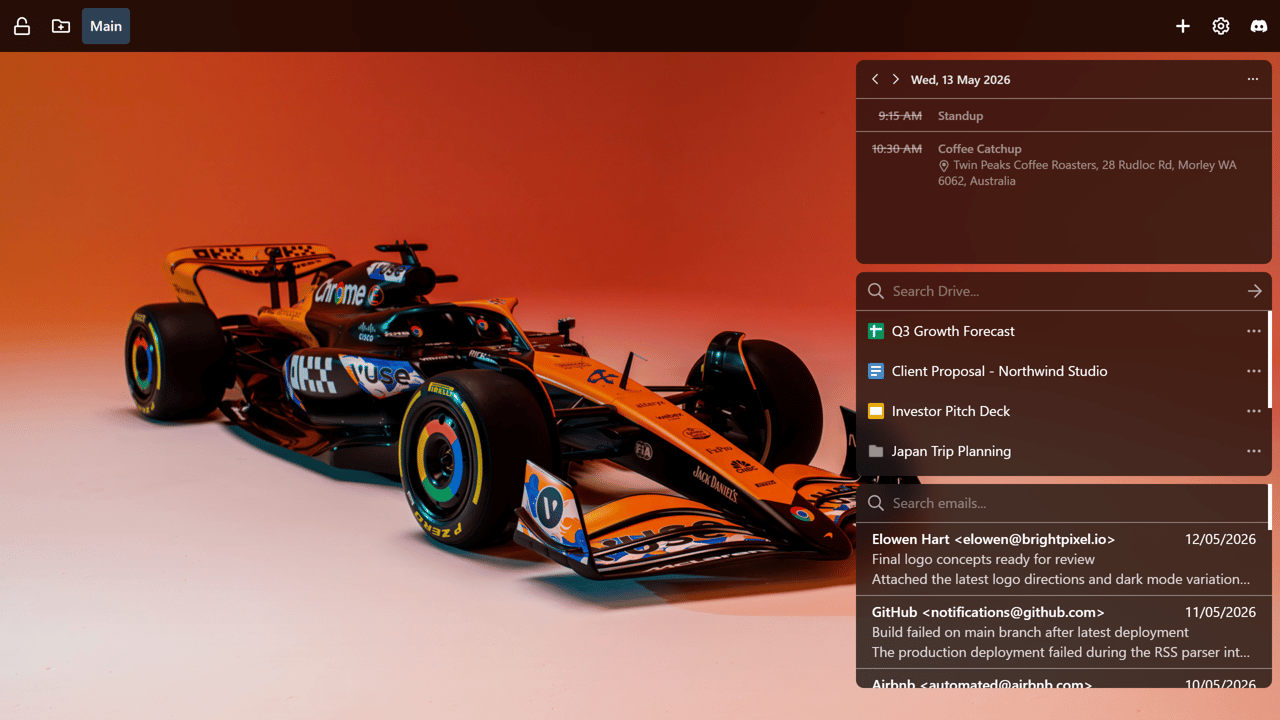
How to Add Google Drive to Chrome New Tab Page
Step 1: Install New Tab Widgets
Start by installing the extension from the Chrome Web Store.
Once installed, open a new tab and you will see your dashboard.
If you plan to use Google Drive, keep in mind that the Google Drive widget is part of Pro.
Step 2: Add the Google Drive Widget
- Open a new tab
- Click + Widget
- Search for Google Drive
- Click Create widget
Step 3: Connect Your Google Drive Account
The first time you use the widget, you will be asked to authenticate with Google.
After connecting your account, the widget can list and search your Google Drive files directly on your new tab page.
Step 4: Resize and Position It
You can drag the widget wherever you want on your dashboard and size it to fit your layout.
Some people keep Drive as a compact file launcher. Others make it larger so it can show more search results and recent files. The best setup depends on how often you reach for Drive during the day.
Use Default Searches to Create Focused Drive Views
One of the most useful Google Drive widget features is the default search setting.
This lets you decide what the widget should show when your dashboard loads, instead of always starting from a blank or general Drive view.
For example, you could create:
- A Drive widget for current client files
- A second Drive widget for invoices and receipts
- A third Drive widget for reports
- A fourth Drive widget for brand assets, templates, or shared folders
This works well if your Drive has grown into a large shared workspace. Instead of searching from scratch every time, each widget can become a saved doorway into one part of your files.
You can also choose whether to show the search bar on each widget. Keep it visible when you want a fast file search tool, or hide it when you only want a clean, focused file list.
Google Drive Shortcut vs Google Drive Widget
You can always add a basic Google Drive bookmark or shortcut to Chrome, and that is useful if all you need is a link that opens Drive.
A Google Drive widget goes further. Instead of only opening Drive, it lets you search files, view recent documents, upload files, and use common file actions from your new tab page. That makes it more useful when you want quick access to a specific document, spreadsheet, PDF, folder, or export without loading the full Drive interface first.
If you are building a broader browser workspace, the Drive widget can also sit beside related tools like the Gmail widget, calendar, notes, links, and bookmarks. That turns your new tab page into more than a row of shortcuts.
Upload and Manage Files Without Leaving Your Dashboard
The Google Drive widget is not only for finding files.
You can drop files onto the widget to upload them to Drive, which is handy when you have a download, screenshot, export, or document that needs to be saved quickly.
Drive files also include an actions menu for common file tasks:
- Download supported files
- Move files into another folder
- Rename files
- Move to trash
Google-native files, such as Docs, Sheets, and Slides, are exported in practical formats where available when downloaded from the widget.
This makes the widget useful for quick file handling, not just quick file viewing.
Why This Works Well on a New Tab Page
A new tab page works best when it gives you useful context without demanding much attention.
Google Drive fits that perfectly.
You are probably not trying to reorganize your entire Drive every time you open a tab. Most of the time, you just want quick access:
- Where is that spreadsheet?
- Can I open the latest report?
- Did I save the export?
- Can I upload this file before I forget?
The Google Drive widget gives you that access layer. Then, when a file needs deeper work, you can open it in Drive with one click.
That makes the widget useful even if you still do your full file organization inside Google Drive itself.
A Better Setup Than a Blank New Tab
Adding Google Drive is often a strong step toward turning your browser into a real workspace.
Once your files are visible on your new tab page, it usually makes sense to add a few more things around them, such as:
- A calendar widget for upcoming meetings
- A Gmail widget for recent or important email
- A notes or to-do widget for follow-ups
- A links widget for the tools you open every day
- A bookmarks widget for saved browser links
This is where New Tab Widgets starts to feel more useful than a standard new tab extension. You are not just replacing the default page with something nicer. You are building a productivity dashboard around the way you actually work.
Is the Google Drive Widget Free?
New Tab Widgets installs for free, but the Google Drive widget is available with New Tab Widgets Pro.
That makes sense for the kind of role it plays in a dashboard. Google Drive is not just a decorative widget. For many people, it is where active work lives.
With Pro, the Google Drive widget helps turn your new tab page into a real workspace by giving you:
- Drive visibility at a glance, so important files are easier to reach
- Fast file search, without opening Google Drive first
- Drag-and-drop uploads, for quick file saving
- File actions, including download, move, rename, and move to trash
- Focused Drive views, using default searches for different workflows
- A more intentional dashboard setup, especially when Drive sits alongside Gmail, calendar, notes, links, and other productivity widgets
If Google Drive is central to your work, this is one of the most practical Pro upgrades because it reduces friction in a workflow you repeat constantly.
Instead of treating your new tab page like empty space, Pro lets you turn it into a place where files, planning, and action all come together.
Should You Add Google Drive to Your New Tab?
If Google Drive is part of your daily workflow, the answer is probably yes.
It is a small change, but it removes friction from something you already do over and over. You get faster file search, quicker access to recent documents, drag-and-drop uploads, and a more useful new tab page overall.
If you want to try it, install New Tab Widgets and add the Google Drive widget to your dashboard. If you want access to Google Drive, you can also view pricing for Pro.
FAQ
Can I add Google Drive to Chrome's new tab page?
Yes. You can add Google Drive to Chrome's new tab page with New Tab Widgets by installing the extension, adding the Google Drive widget, and connecting your Google account.
Is the Google Drive widget free?
New Tab Widgets installs for free, but the Google Drive widget is a Pro widget and requires New Tab Widgets Pro.
Can I upload files to Google Drive from the new tab page?
Yes. The Google Drive widget supports drag-and-drop uploads, so you can drop a file onto the widget to upload it to Drive.
Can I use more than one Google Drive widget?
Yes. You can add multiple Google Drive widgets and give each one a different default search, such as client files, invoices, reports, or shared project folders.
Does the widget replace Google Drive?
No. The widget is a quick access layer for searching, opening, uploading, and managing files. You can still open files in Google Drive for deeper organization and editing.