How to Customize Your Browser New Tab Page in 2026
Learn how to customize your browser's new tab page to boost productivity and create a personalized dashboard. Step-by-step guide for Chrome, Edge, and other browsers.
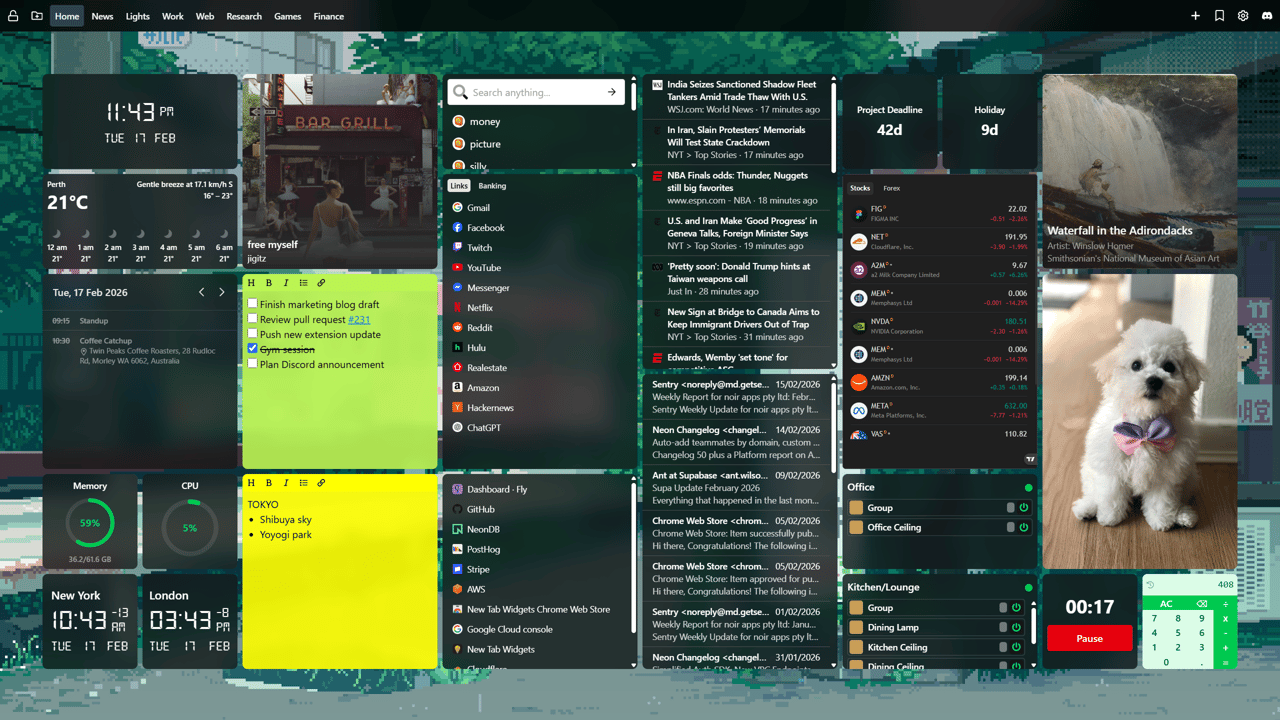
Every time you open a new tab in your browser, you're faced with the same question: should this space just sit there empty, or could it actually help you work better?
For most people, the default new tab page is functional but forgettable: maybe a search bar and some thumbnails of recently visited sites. But here's the thing: you open new tabs dozens (or hundreds) of times every day. That's a lot of wasted potential.
The good news? Customizing your new tab page is easier than you think, and it can genuinely improve how you work. This guide walks you through exactly how to do it.
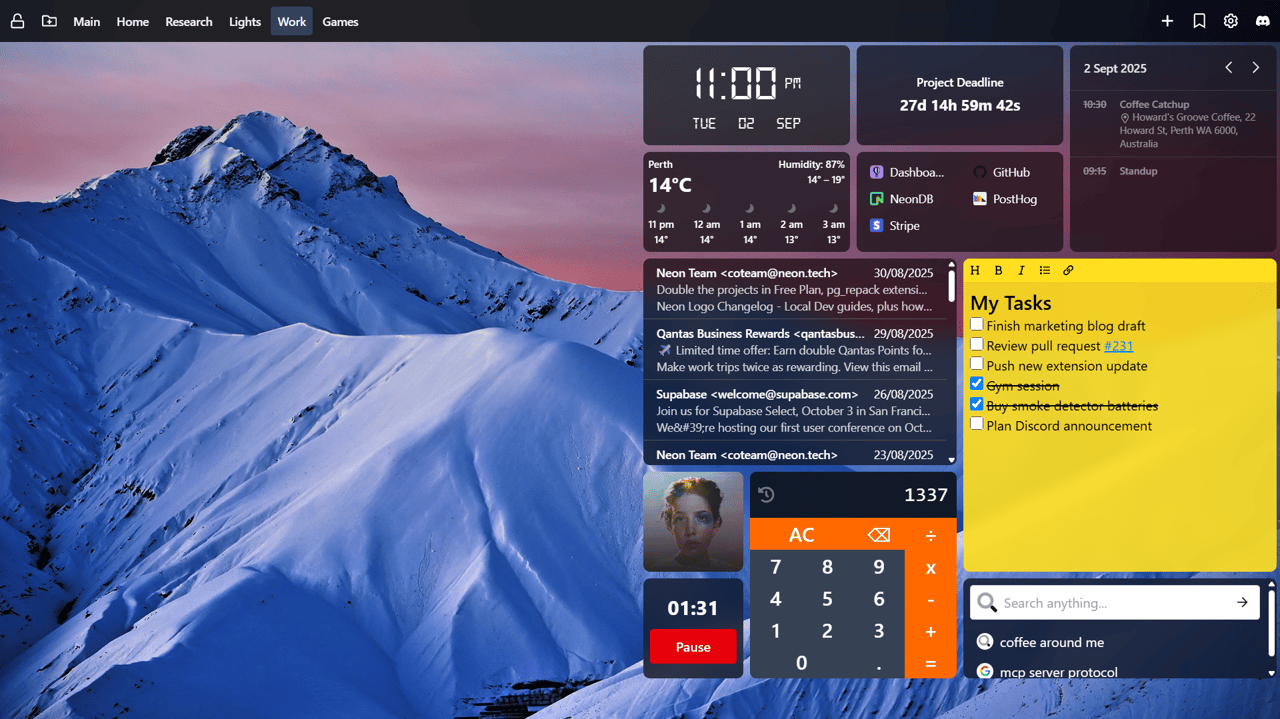
Why Customize Your New Tab Page?
Before diving into the how, let's talk about the why. A customized new tab page can:
- Save you time by putting frequently accessed tools and links right in front of you
- Keep you organized with notes, to-do lists, and calendar widgets
- Reduce distractions by creating a calm, intentional workspace
- Improve your workflow with quick access to email, weather, RSS feeds, and more
- Make your browser feel like yours with personalized backgrounds and layouts
Think of it as your digital workspace. Just like you'd organize a physical desk, you can organize your browser to work the way you do.
What Can You Customize?
Modern browser customization goes far beyond just changing the background image. Here's what's possible:
🎨 Visual Customization
- Background images or colors
- Themes (light, dark, or custom)
- Layout and grid arrangements
- Font choices and sizes
🛠️ Functional Widgets
- Quick-access bookmarks and link shortcuts
- Digital clocks and timers
- Weather forecasts
- Sticky notes and to-do lists
- Calendar integrations
- Email inbox previews
- RSS feed readers
- Music controls (Spotify, etc.)
- Smart home controls
- Custom web app embeds
📊 Productivity Tools
- Focus timers (Pomodoro technique)
- Goal tracking
- Habit trackers
- Quote of the day
- Search bars with multiple engines
The possibilities are nearly endless, especially when using dedicated customization tools.
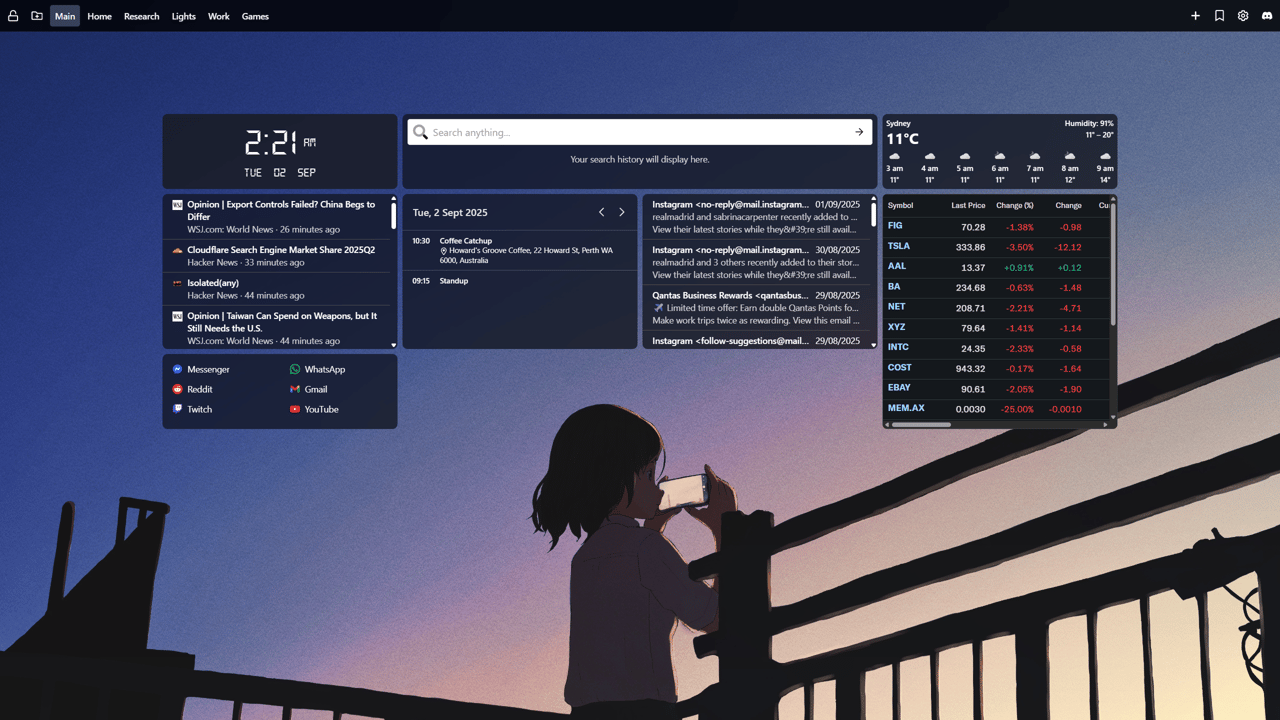
Method 1: Using Browser Built-In Options (Limited)
Most browsers offer some basic customization options out of the box, but they're fairly limited.
Chrome's Default Customization
- Open a new tab in Chrome
- Click the "Customize Chrome" button in the bottom-right corner
- Choose from these options:
- Background: Upload an image or choose from Chrome's collection
- Shortcuts: Toggle visibility and customize which sites appear
- Color and theme: Pick accent colors
Limitations: Chrome's built-in customization is basic. You can't add widgets, notes, weather, or any advanced functionality.
Microsoft Edge's Customization
Edge offers slightly more options:
- Open a new tab in Edge
- Click the gear icon in the top-right corner
- Choose from different page layouts: Focused, Inspirational, or Informational
- Toggle widgets like weather, news, and traffic
Limitations: While Edge has more built-in features than Chrome, you're still locked into Microsoft's predetermined layouts and can't fully customize the experience.
Method 2: Using Browser Extensions (Recommended)
For true customization and productivity features, browser extensions are the way to go. They unlock the full potential of your new tab page.
Why Extensions Win
- Full control over layout, widgets, and functionality
- No coding required: drag, drop, and configure
- Regular updates with new features
- Cloud sync to keep your setup and supported backgrounds across devices
- Active communities for support and ideas
Getting Started with Extensions
The process is similar across all extensions:
- Install the extension from your browser's web store
- Open a new tab to see the extension activate
- Add widgets by clicking the "+" or "Add Widget" button
- Customize the layout by dragging and resizing elements
- Tweak settings like background, theme, and widget preferences
Step-by-Step: Customizing with New Tab Widgets
Let's walk through a complete customization example using New Tab Widgets, one of the most flexible options available.
Step 1: Install the Extension
- Go to the Chrome Web Store
- Click "Add to Chrome"
- Confirm the installation
The extension works with Chrome, Edge, Brave, and other Chromium-based browsers.
Step 2: Choose Your Starting Layout
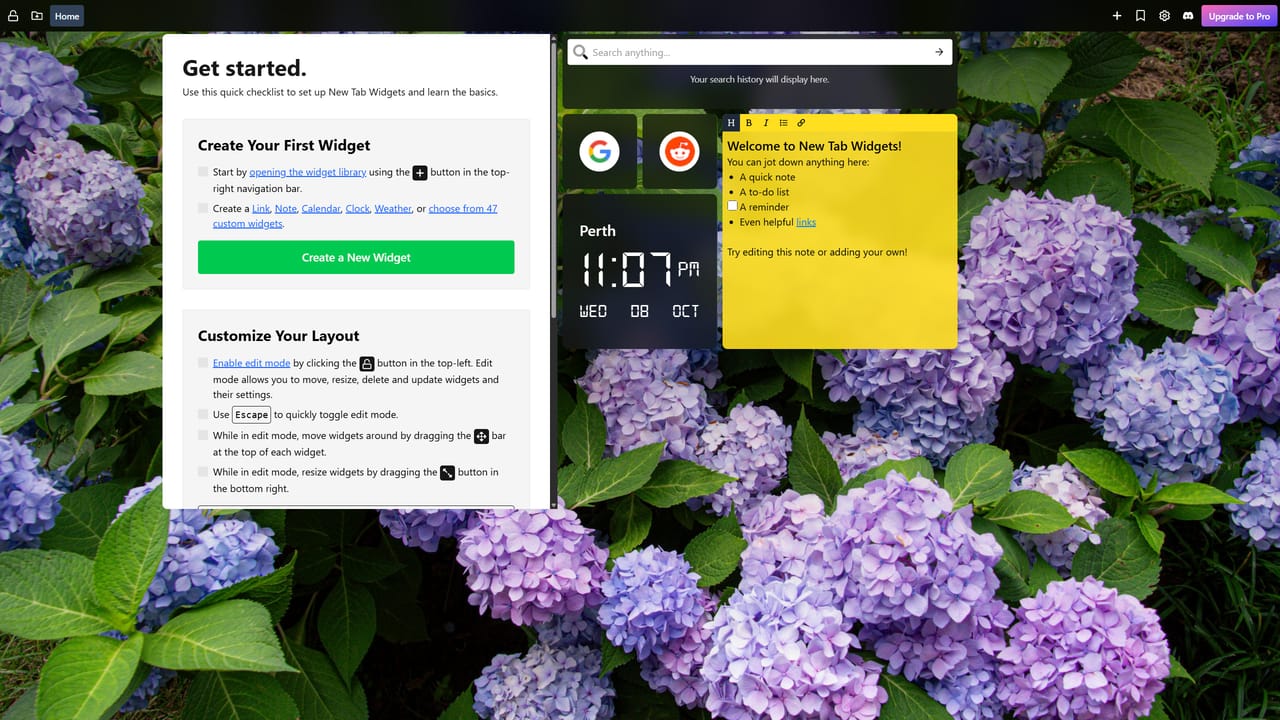
When you first open a new tab, you'll see a few starter widgets:
- A "Get Started" guide
- A digital clock
- A sticky note
- Some quick links
Feel free to keep these or remove them - this is your canvas.
Step 3: Add Your First Widgets
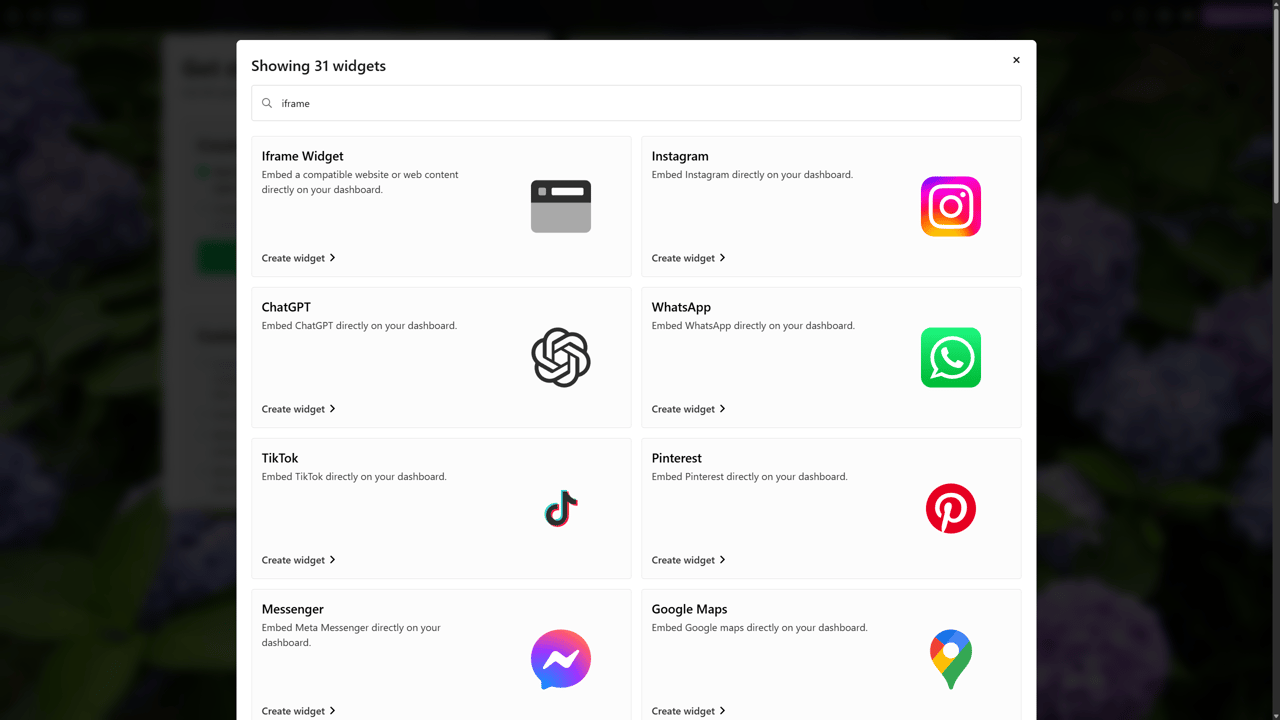
Click the "+ Widget" button to see all available options. Here are some popular starting points:
For Productivity:
- Sticky Notes: Jot down quick thoughts and reminders
- Links: One-click access to your most-used websites
- Google Calendar: See your schedule without opening Gmail
- Gmail: Check inbox messages at a glance
For Staying Informed:
- Weather: Current conditions and forecasts
- RSS Feeds: News from your favorite sites
- Clock: Time, date, and timezone info
For Work-Life Balance:
- Spotify: Control music without switching tabs
- Philips Hue: Control smart lighting
New Tab Widgets currently offers 69 different widgets, with more being added regularly.
Step 4: Arrange Your Dashboard
Now comes the fun part: making it yours:
- Drag widgets to different positions
- Resize widgets by dragging their corners
- Stack related widgets near each other (e.g., calendar next to sticky notes)
- Create multiple pages for different contexts (Work, Personal, Focus)
There's no "right" way to set this up. Experiment and see what feels natural for your workflow.
Step 5: Customize the Look
Click the settings icon to adjust visual elements:
- Background: Choose from built-in images, upload your own, or use a solid color
- Theme: Switch between light and dark modes
- Full CSS control (Pro): Customize fonts, spacing, colors, and layout with your own styles
For Pro users, background image choices sync across devices unless the background was uploaded locally.
Your new tab should feel calming and intentional, not cluttered or stressful.
Popular Customization Ideas
Need inspiration? Here are some proven setups:
The Minimal Dashboard
- Large clock widget
- Weather in one corner
- 4-6 essential link shortcuts
- Clean, single-color background
- Perfect for people who want simplicity
The Productivity Hub
- Google Calendar widget (top)
- Gmail inbox preview (left)
- Sticky notes for quick tasks (right)
- Timer widget for focus sessions (bottom)
- RSS feed for industry news
- Ideal for remote workers and freelancers
The Student Setup
- Study timer (Pomodoro technique)
- To-do list for assignments
- Links to class portals
- Calendar for exam dates
- Great for staying on track
The Creative Workspace
- Spotify controls for background music
- Inspirational images as backgrounds
- Minimal clutter for focus
- Links to design tools
- Weather widget
- Perfect for designers, writers, and artists
Tips for Maximum Effectiveness
After years of people using customized new tab pages, here are the patterns that work best:
Do:
- ✅ Start simple : Add 3-5 widgets, then expand as needed
- ✅ Keep it intentional Every widget should serve a purpose
- ✅ Use multiple pages : Separate work, personal, and focus contexts
- ✅ Update regularly : Your needs change, so should your dashboard
- ✅ Pick calming backgrounds : Avoid busy images that distract
Don't:
- ❌ Overcrowd the page : Too many widgets become overwhelming
- ❌ Add widgets you won't use : Quality over quantity
- ❌ Forget to customize : The default setup is just a starting point
Troubleshooting Common Issues
Q: The extension doesn't appear when I open a new tab
A: Check that the extension is enabled in your browser's extension settings. Sometimes you need to refresh the page or restart your browser after installation.
Q: My widgets aren't loading
A: Make sure you've granted the necessary permissions to the extension. Some widgets (like Gmail or Calendar) require you to connect your accounts.
Q: Can I use this on mobile?
A: Most new tab extensions are desktop-only since mobile browsers handle tabs differently. This guide applies to Chromium-based browsers on Mac, Windows, and Linux.
Supported Chromium-based browsers include:
- Google Chrome
- Microsoft Edge
- Brave
- Vivaldi
- Opera
- Arc (Chromium-based)
If you're on a non-Chromium browser (like Firefox or Safari), you'll need a different extension or method.
Q: Will this slow down my browser?
A: Quality extensions are optimized for performance. New Tab Widgets, for example, uses lazy loading and efficient rendering to ensure your browser stays fast.
Q: Is my data private?
A: New Tab Widgets does not store data on our servers for free users. For Pro users, we store encrypted data on our servers for syncing between devices and backup/restoring. Background image choices can sync too, except for locally uploaded background images. Always review the privacy policy before installing any extension.
Taking It Further: Advanced Customization
Once you're comfortable with the basics, you can explore more advanced options:
Custom CSS
Some extensions allow you to inject custom CSS to fine-tune the appearance beyond what's available in settings. This is perfect for developers who want pixel-perfect control.
Multiple Profiles
Use different browser profiles (Work, Personal, etc.) with unique new tab setups for each. This keeps your contexts completely separated.
Advanced Widgets and Integrations
Unlock more advanced widgets to bring full web apps and services into your dashboard. Use built‑in integrations like Spotify, Philips Hue, TradingView, Google Calendar, Gmail, ChatGPT, and Gemini, or embed your own tools with iframes for highly customized workflows.
Widget Development
Some platforms let you create custom widgets if you have coding skills. This opens up truly unlimited possibilities. If you need full control, the iframe widget lets you develop and host your own widget independently, then embed it in your dashboard.
Comparison: Top Customization Options
Here's how the leading solutions stack up:
| Solution | Customization Level | Widgets Available | Ease of Use | Best For |
|---|---|---|---|---|
| Chrome Built-in | Basic | None | Very Easy | Casual users |
| Edge Built-in | Basic | News, Weather | Easy | Edge users |
| New Tab Widgets | Advanced | 69+ widgets | Easy | Power users |
| Momentum | Moderate | Limited | Very Easy | Mindfulness |
| Tabliss | Moderate | Moderate | Easy | Open-source fans |
| Custom HTML | Expert | Unlimited | Difficult | Developers |
Real Users, Real Results
“This is what I've been looking for, for years!” — Kenneth Conomos, Pro member
“Beautiful and modern design with a simple and intuitive user interface. Haven't had any glitches or crashes.” — Kirk, Pro member
“Great addon for the way I use chrome with a lot of neat features” — Dennis Johansson
Your Turn: Start Customizing Today
You don't need to be a tech expert to create a better browser experience. Whether you want a simple, clean look or a fully loaded productivity dashboard, customizing your new tab page takes just a few minutes and can make a real difference in how you work.
Ready to get started?
- Choose your customization method (extensions recommended)
- Install your preferred tool
- Add 3-5 essential widgets
- Adjust the background and theme
- Use it for a week and refine
Your browser is your digital workspace. Make it work for you.
🔗 Install New Tab Widgets from Chrome Web Store