How to Add Gmail to Your New Tab Page in Chrome
Learn how to add Gmail to your Chrome new tab page so you can see recent emails, open threads faster, and create focused inbox views like unread or starred messages.
Email is where a lot of work begins, but it's also where a lot of time disappears. When you keep opening Gmail in separate tabs just to check for anything urgent, those quick detours add up and make it harder to stay focused on what you were doing.
Adding Gmail to your new tab page gives you a faster way to stay aware of your inbox, see recent messages at a glance, and jump straight into the ones that matter. If you're coming here specifically for the Gmail widget, it is worth knowing up front that Gmail is a Pro widget in New Tab Widgets.
The extension installs for free, but adding and using the Gmail widget requires New Tab Widgets Pro. If you want to compare plans first, you can view pricing.
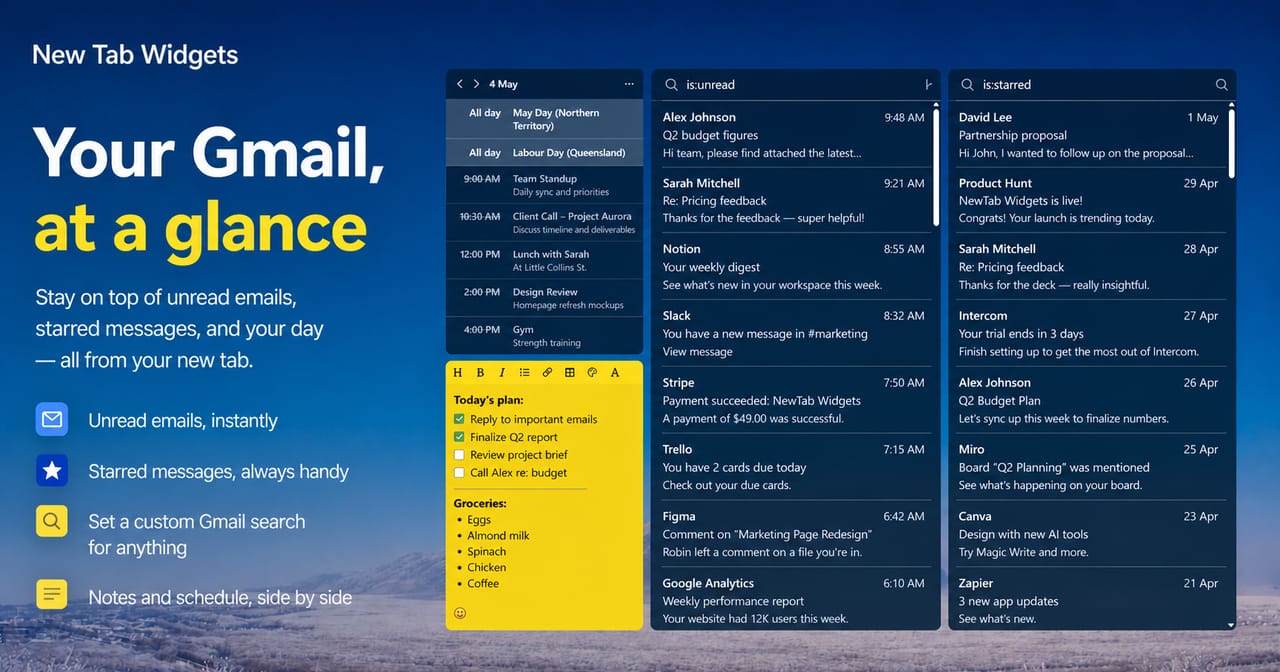
Why Add Gmail to Your New Tab Page?
The biggest reason is simple: less context switching.
Most people open new tabs constantly throughout the day. If your inbox is one of the things you check most often, your new tab page is a natural place for it.
Adding a Gmail widget to your new tab page helps because it lets you:
- See recent emails instantly without opening Gmail in a separate tab
- Spot urgent messages sooner while staying focused on your current task
- Open the right email faster instead of hunting through your inbox
- Turn your browser into a working dashboard instead of a blank page
It also pairs well with the way many people already work. If you use your browser as your main workspace, having Gmail, calendar, notes, links, and other tools visible in one place makes your setup feel much more deliberate.
What the Gmail Widget Lets You Do
With the Gmail widget in New Tab Widgets, you can:
- View recent Gmail messages directly on your new tab page
- See sender, subject, and preview text at a glance
- Click any message to open it in Gmail
- Create focused inbox views with predefined Gmail searches
- Add multiple Gmail widgets for different workflows
That last point is especially useful.
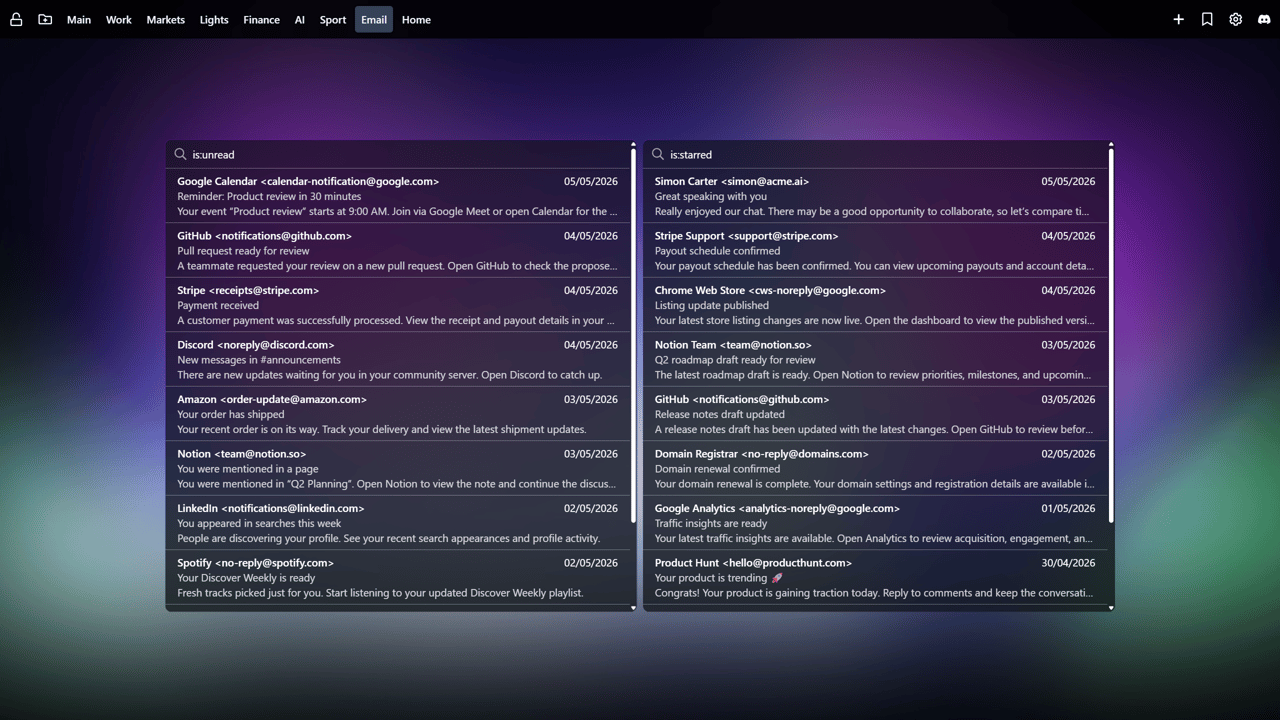
Instead of having one generic inbox view, you can create separate Gmail widgets for different purposes, such as:
- Unread emails with
is:unread - Starred emails with
is:starred - Important emails with
is:important - Sent mail with
in:sent
That means one widget could show your unread inbox, while another shows only starred messages you want to come back to later. It is a simple idea, but it makes your dashboard much more useful.
How to Add Gmail to Your New Tab Page
Step 1: Install New Tab Widgets
Start by installing the extension from the Chrome Web Store.
Once installed, open a new tab and you'll see your dashboard.
If you plan to use Gmail, keep in mind that the Gmail widget is part of Pro.
Step 2: Add the Gmail Widget
- Open a new tab
- Click + Widget
- Search for Gmail
- Click Create widget
Step 3: Connect Your Gmail Account
The first time you use the widget, you'll be asked to authenticate with Google.
After connecting your account, the widget can display your Gmail messages directly on your new tab page.
Step 4: Resize and Position It
You can drag the widget wherever you want on your dashboard and size it to fit your layout.
Some people prefer a compact inbox view in a corner. Others give Gmail more space and make it one of the main parts of their dashboard. The right setup depends on how often you check email and how central it is to your workflow.
Use Predefined Searches to Build Smarter Gmail Widgets
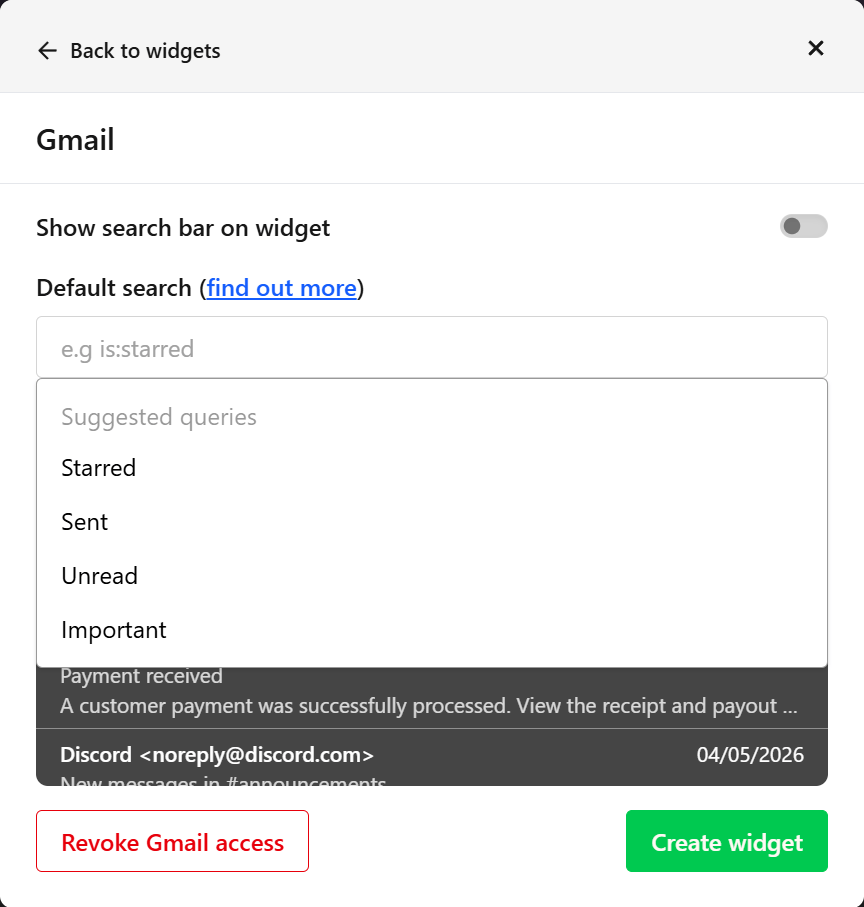
One of the most useful Gmail widget features is support for predefined search queries.
This lets you decide what each widget should show by default, instead of always showing the same general inbox view.
For example, you could create:
- A Gmail widget for unread emails
- A second Gmail widget for starred emails
- A third Gmail widget for important messages
- A fourth Gmail widget for sent mail or another custom Gmail search
This is helpful if you want one area of your dashboard for things that need action now, and another for messages you are keeping an eye on.
If you already use Gmail search operators, this will feel familiar immediately. If not, you can still get a lot of value from simple presets like unread and starred.
Why This Works Well on a New Tab Page
A new tab page works best when it gives you information you want to check often, without making you do extra work.
Gmail fits that perfectly.
You are probably not trying to fully process your inbox every time you open a tab. Most of the time, you just want quick awareness:
- Did anything urgent come in?
- Is there a reply I need to send?
- Is there a starred thread I should follow up on?
The Gmail widget gives you that quick awareness layer. Then, when something does need attention, you can jump straight into Gmail with one click.
That makes the widget useful even if you still do your full email triage inside Gmail itself.
A Better Setup Than a Blank New Tab
Adding Gmail is often the first step toward building a more useful browser home base.
Once your inbox is visible on your new tab page, it usually makes sense to add a few more things around it, such as:
- A calendar widget for upcoming meetings
- A notes or to-do widget for follow-ups
- A links widget for the tools you open every day
- A weather or clock widget for quick context
This is where New Tab Widgets starts to feel more valuable than a standard new tab extension. You are not just replacing the default page with a prettier one. You are building a dashboard around the way you actually work.
Gmail Is a Pro Widget
The Gmail widget is available with New Tab Widgets Pro.
That makes sense for the kind of role it plays in a dashboard. Gmail is not just decorative or nice to have. For many people, it is one of the highest-value widgets you can add because it puts active communication right on the page you already open all day.
With Pro, the Gmail widget helps turn your new tab page into a real workspace by giving you:
- Inbox visibility at a glance, so you can notice important messages faster
- Direct access to email threads, without opening Gmail first and losing focus
- Custom Gmail search queries, so you can create dedicated widgets for unread, starred, important, or other filtered views
- A more intentional dashboard setup, especially when Gmail sits alongside calendar, notes, links, and other productivity widgets
If email is central to your work, this is one of the most practical Pro upgrades because it reduces friction in a workflow you repeat constantly.
Instead of treating your new tab page like empty space, Pro lets you turn it into a place where email, planning, and action all come together.
Should You Add Gmail to Your New Tab?
If Gmail is part of your daily workflow, the answer is probably yes.
It is a small change, but it removes friction from something you already do over and over. You get faster inbox awareness, quicker access to important threads, and a more useful new tab page overall.
If you want to try it, install New Tab Widgets and add the Gmail widget to your dashboard. If you want access to Gmail, you can also view pricing for Pro.