Maximize Chrome Browser Productivity with New Tab Widgets
Learn how to maximize Chrome browser productivity with new tab widgets. Complete guide to creating an efficient workspace with calendar, email, tasks, and more.
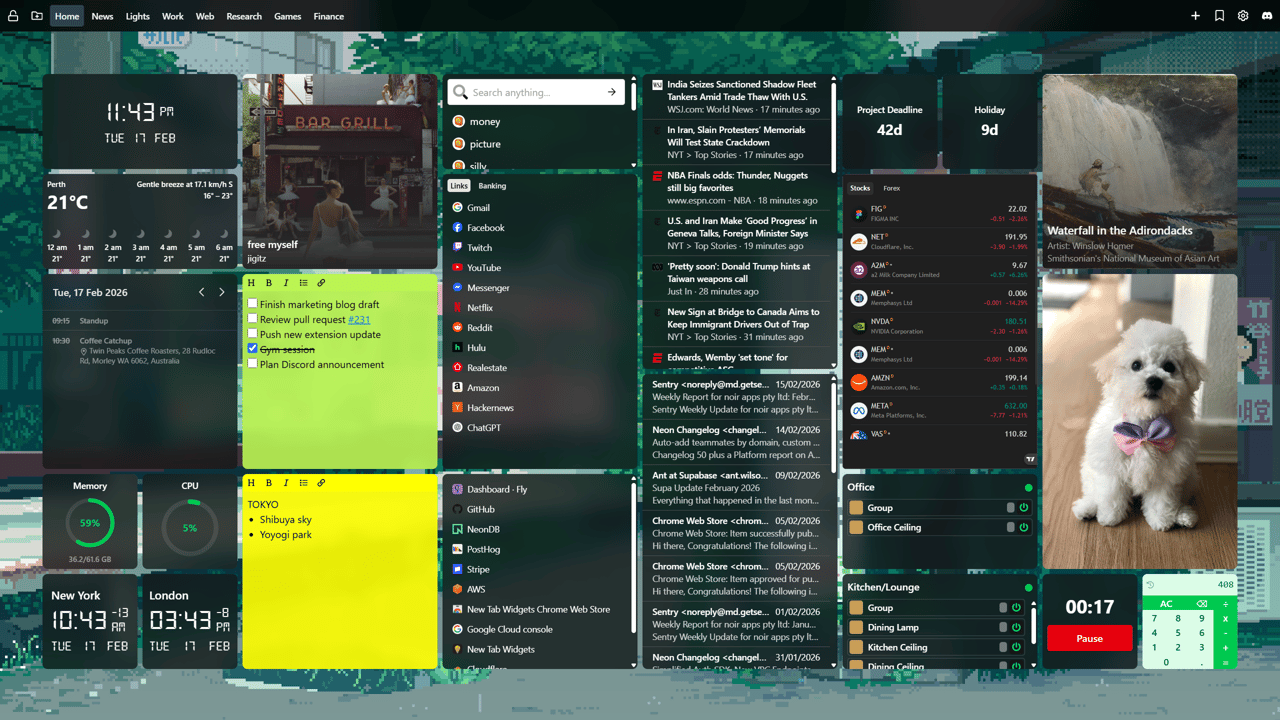
Your browser is your workspace. If you're like most people, you spend 6-8 hours a day (or more) with Chrome open. Email, documents, project management, research, communication: it all happens in browser tabs.
But here's the problem: your browser is probably working against you, not for you.
The average knowledge worker:
- Has 20-50 tabs open at any given time
- Spends 2+ hours per day just managing tabs, searching for information, and context switching
- Opens 150+ new tabs daily
- Loses focus every 3 minutes due to tab chaos and information hunting
What if your browser could eliminate most of that friction? What if every new tab actively helped you work better instead of just being a blank search page?
This guide shows you how to turn Chrome into a genuine productivity powerhouse using new tab widgets.
The Hidden Cost of Browser Inefficiency
Most people don't realize how much time they waste in their browser. Let's break it down:
Daily Time Sinks
Looking for open tabs: 15-20 minutes You know Gmail is open... but which tab? Ctrl+F through tabs, scan visually, give up and open a new one.
Checking calendar repeatedly: 10-15 minutes Open Gmail → Calendar → Check schedule → Close tab. Repeat 10x per day.
Context switching: 30-45 minutes Switch to email → Get distracted → Switch to docs → Forget what you were doing → Restart.
Re-opening closed tabs: 10-15 minutes "Wait, I need that tab again." Ctrl+Shift+T or dig through history.
Finding bookmarks: 10-15 minutes "Where did I save that link?" Scan bookmarks, search, give up and Google it.
Total daily waste: 75-110 minutes
That's nearly 2 hours per day lost to browser inefficiency. Over a year? 470+ hours (almost 12 full work weeks).
The Productivity Impact
Beyond raw time, browser chaos causes:
- Cognitive overload from too many open tabs
- Broken flow states from constant context switching
- Missed meetings from forgetting to check calendar
- Slow responses from buried emails
- Decision fatigue from managing browser mess
The solution isn't more tabs or better memory. It's making your browser work smarter.
The New Tab Widget Approach
Every time you open a new tab, you make a choice:
- Search for something
- Navigate to a site
- Check a tool or service
- Review information
What if, instead of starting from scratch, the information you need was just there?
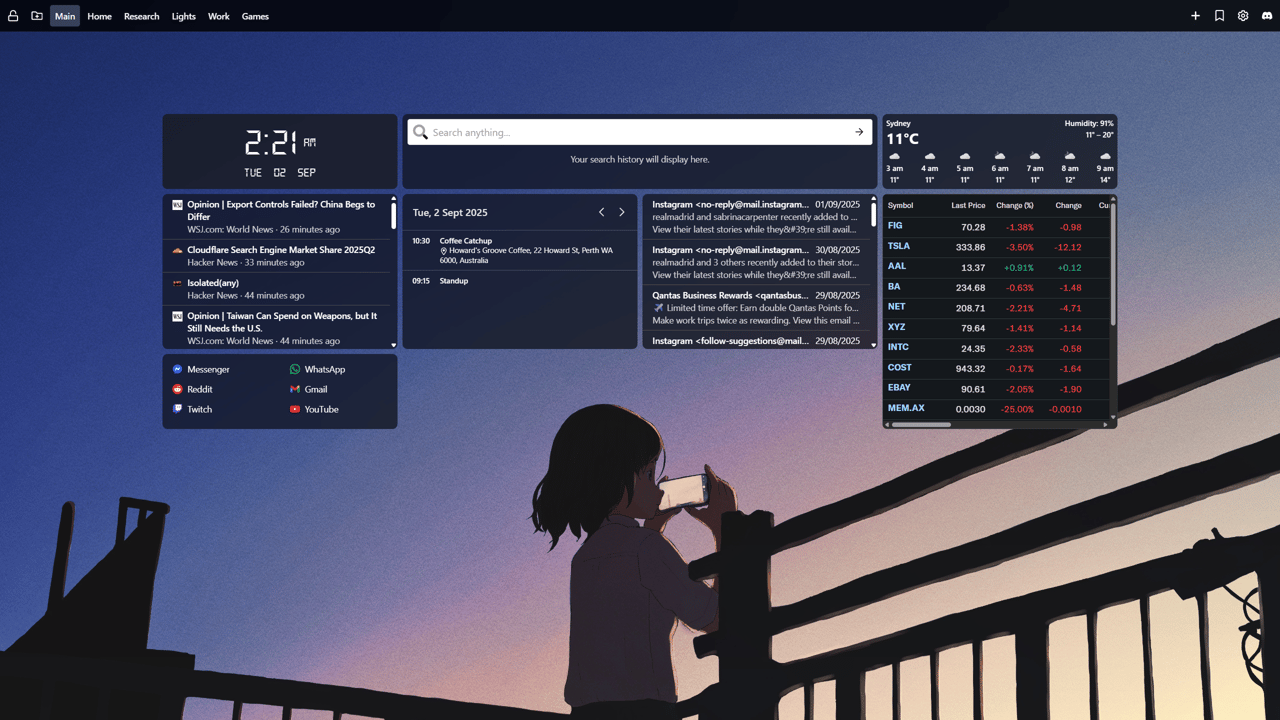
That's the power of new tab widgets. Transform your most-opened page (new tab) into a command center that:
- Surfaces key information automatically (calendar, email, weather, tasks)
- Provides instant access to frequently used tools (links, search, apps)
- Reduces context switching by showing multiple sources at once
- Maintains focus by keeping you oriented and organized
Think of it as upgrading from a blank desk to a fully equipped workspace.
Essential Productivity Widgets
Let's build the ultimate productivity setup. Here are the must-have widgets:
1. Calendar Widget: Your Time Awareness System
Purpose: See your schedule without opening Google Calendar
Why it matters:
- Know what's coming up next
- Plan deep work around meetings
- Never miss a call or deadline
- Reduce calendar-checking interruptions
Pro setup:
- Size: Large enough to show 4-6 upcoming events
- Position: Top center or prominent side position
- Configuration: Show event titles, times, and meeting links
Productivity gain: 15-20 minutes daily from reduced calendar checking
2. Email/Gmail Widget: Inbox Awareness
Purpose: See urgent messages without opening Gmail
Why it matters:
- Identify truly urgent emails
- Avoid inbox-checking compulsion
- Respond faster to critical messages
- Reduce email anxiety
Pro setup:
- Size: Show 3-5 recent messages
- Position: Sidebar or secondary prominent area
- Configuration: Filter to show unread or flagged only
Productivity gain: 20-30 minutes daily from better email triage
Important: Don't read every email here—use it as a triage tool to identify what actually needs immediate attention.
3. Sticky Notes Widget: Your External Brain
Purpose: Capture thoughts instantly without losing focus
Why it matters:
- Store working memory externally
- Quick capture during interruptions
- Keep priorities visible
- Reduce mental cognitive load
Pro setup:
- Content ideas:
- Today's top 3 priorities
- Current project next actions
- Important reference info (meeting codes, URLs)
- Running questions or ideas
- Position: Easily visible but not blocking other widgets
Productivity gain: 10-15 minutes daily from not losing track of thoughts
4. Quick Links Widget: One-Click Tool Access
Purpose: Launch frequently used tools instantly
Why it matters:
- Eliminate typing URLs
- Organize tools by context
- Reduce bookmark hunting
- Faster tool switching
Pro setup:
- Organize by category:
- Communication (Slack, Teams, Email)
- Documentation (Notion, Drive, Confluence)
- Project Management (Asana, Jira, Trello)
- Development (GitHub, AWS, staging environments)
- Position: Prominent, easy to scan
- Tip: Use descriptive labels and icons
Productivity gain: 15-20 minutes daily from faster tool access
5. Timer Widget: Focus Session Manager
Purpose: Structure work sessions and breaks
Why it matters:
- Enforce focused work periods (Pomodoro technique)
- Track billable hours
- Remember to take breaks
- Maintain sustainable pace
Pro setup:
- Use cases:
- 25-minute Pomodoro work sessions
- 5-minute break timers
- Hourly stretch reminders
- Meeting time tracking
- Position: Visible but not central
Productivity gain: 20-30 minutes daily from better time structure
6. Search Widget: Multi-Engine Quick Search
Purpose: Search multiple sources without navigating away
Why it matters:
- Switch search engines instantly (Google, DuckDuckGo, work intranet)
- Quick-search specific tools (GitHub, Drive, docs)
- Reduce navigation friction
- Stay in flow
Pro setup:
- Configure multiple search engines:
- General: Google, DuckDuckGo
- Work: Company intranet, Confluence, Jira
- Code: GitHub, Stack Overflow, npm
- Files: Google Drive, Dropbox
Productivity gain: 5-10 minutes daily from faster searches
7. Weather Widget: Environmental Awareness
Purpose: Stay connected to the physical world
Why it matters:
- Plan breaks (nice weather = go outside)
- Prepare for commute or errands
- Maintain work-life awareness
- Reduce cabin fever
Pro setup:
- Size: Compact—just current conditions and today's forecast
- Position: Corner or secondary area
- Importance: Small but visible
Productivity gain: Indirect—improves mental health and break quality
8. RSS Feed Widget: Curated Information Intake
Purpose: Stay informed without falling into news rabbit holes
Why it matters:
- Industry updates in one place
- Scheduled information consumption
- Avoid constant news checking
- Curated, relevant content only
Pro setup:
- Feed sources:
- Industry news and blogs
- Company announcements
- Competitor updates
- Relevant Reddit/forums
- Usage pattern: Review once or twice daily, not constantly
Productivity gain: 15-20 minutes daily from reduced news browsing
9. Spotify Widget: Ambient Control
Purpose: Control focus music without context switching
Why it matters:
- Maintain flow state
- Adjust music mood instantly
- No app switching required
- Better concentration
Pro setup:
- Size: Compact—just playback controls
- Position: Unobtrusive corner
- Playlists: Pre-organized for work modes
Productivity gain: 5-10 minutes daily from no music app switching
10. Custom iFrame Widget: Your Specialized Tools
Purpose: Embed internal tools or dashboards
Why it matters:
- Monitor critical systems (DevOps, analytics)
- Quick-access to internal admin panels
- Custom workflow integration
- Advanced productivity customization
Pro setup:
- Use cases:
- Grafana/Datadog dashboards (DevOps)
- Internal admin tools
- Custom company portals
- Monitoring systems
Best for: Technical roles and power users with specialized tools
Productivity Dashboard Layouts
Different roles need different setups. Here are proven configurations:
The Executive/Manager Layout
Goal: Stay on top of schedule and communications
Primary widgets:
- Calendar (large, center-top): Full day visibility
- Email (left sidebar): Message triage
- Sticky Notes (right): Priorities and reminders
- Links (bottom): Zoom, Slack, docs, reports
Why it works: Executives need schedule awareness and responsive communication above all else.
The Developer/Engineer Layout
Goal: Minimize distractions, maximize focus
Primary widgets:
- Timer (prominent): Pomodoro for deep work
- Links (large): GitHub, staging, docs, Stack Overflow
- Sticky Notes (side): Current task, bugs, code snippets
- Spotify (small): Background music control
- RSS (bottom): Tech news, Hacker News
Why it works: Developers need long focus periods and quick access to technical resources.
The Designer/Creative Layout
Goal: Inspiration meets practical access
Primary widgets:
- Links (prominent): Figma, Dribbble, inspiration sources
- Spotify (medium): Music is central to creative work
- Calendar (medium): Deadline awareness
- Weather (visible): Mood and break planning
- Minimal background: Avoid visual clutter
Why it works: Creatives need inspiration, tool access, and minimal distraction.
The Freelancer/Consultant Layout
Goal: Multi-client organization and time tracking
Primary widgets:
- Timer (large): Billable hour tracking
- Calendar (prominent): Client meetings and deadlines
- Links (organized by client): Project-specific tools
- Sticky Notes (per-client): Tasks and priorities
- Email (visible): Client communication
Why it works: Freelancers juggle multiple projects and need clear client separation.
The Student Layout
Goal: Stay organized and focused on coursework
Primary widgets:
- Timer (prominent): Study session structure
- Sticky Notes (large): Assignment deadlines and to-dos
- Links (by class): Course portals, research tools, library
- Calendar (medium): Class schedule and exam dates
- Spotify (small): Study music
Why it works: Students need deadline awareness and study structure.
Advanced Productivity Techniques
Once you've mastered the basics, try these advanced strategies:
Multiple Page Strategy
Create different pages for different work modes:
Page 1: Work Mode
- Calendar, Email, Work Links, Timer
- Professional background
- All business widgets
Page 2: Focus Mode
- Timer (large), Spotify, Minimal notes
- Calming background
- Zero distractions
Page 3: Personal
- Personal email, hobby links, RSS feeds
- Relaxed aesthetic
- Clear work-life separation
Switch between pages with one click based on current context.
Time-Based Workflows
Align widgets with your work schedule:
Morning (9-10 AM):
- Check calendar widget for day ahead
- Review email widget for urgencies
- Set top 3 priorities in sticky notes
- Start timer for first focus block
Midday (12-1 PM):
- Check weather widget for lunch break planning
- Review RSS widget for industry news
- Clear completed tasks from notes
Afternoon (3-5 PM):
- Check calendar for remaining meetings
- Review email for EOD responses
- Update notes with tomorrow's priorities
Keyboard Shortcut Integration
Power user technique—combine widgets with Chrome shortcuts:
- Ctrl+T (new tab) → Instant dashboard access
- Ctrl+Click on links → Open in background
- Ctrl+W → Close tab, back to dashboard
- Custom widget keyboard shortcuts (if available)
This creates a keyboard-driven workflow that's lightning fast.
Cloud Sync for Multi-Device Productivity
Use Pro features to sync across devices:
Desktop at work:
- Full widget setup with work tools
Laptop at home:
- Same setup syncs automatically
- Consistent experience everywhere
Benefits:
- No reconfiguration needed
- Notes and settings sync
- Background image choices sync, except for locally uploaded background images
- Seamless work from anywhere
Measuring Your Productivity Gains
After setting up your dashboard, track these metrics:
Time Savings (Measurable)
- Before: Count daily minutes spent finding tabs, checking calendar, hunting bookmarks
- After: Track the same over a week
- Typical savings: 30-90 minutes daily
Focus Improvements (Observable)
- Fewer interrupted work sessions
- Longer sustained focus periods
- Less tab-switching stress
Organization Benefits (Qualitative)
- Never miss meetings
- Respond to emails faster
- Stay on top of priorities
- Feel more in control
Most users report noticeable improvements within 3-5 days of use.
Common Productivity Mistakes to Avoid
Mistake 1: Too Many Widgets
Problem: Trying to add every available widget Result: Overwhelming, cluttered dashboard Solution: Start with 3-5 essential widgets, add more only as needed
Mistake 2: Ignoring Visual Hierarchy
Problem: All widgets same size and prominence Result: Hard to focus on what matters Solution: Size widgets based on importance—big calendar, small weather
Mistake 3: Set-It-and-Forget-It
Problem: Never updating widget configuration Result: Dashboard becomes stale and less useful Solution: Review and adjust monthly based on changing needs
Mistake 4: Distracting Backgrounds
Problem: Busy, colorful background images Result: Reduced readability and focus Solution: Use solid colors or subtle, calming images
Mistake 5: No Clear Purpose
Problem: Adding widgets because they're cool, not useful Result: Wasted space and reduced utility Solution: Every widget should serve a specific productivity purpose
Productivity Dashboard Principles
Follow these principles for maximum effectiveness:
1. Intentional Design
Every element should serve a purpose. If a widget isn't actively helping you work better, remove it.
2. Visual Hierarchy
Important information should be prominent. Less critical elements should be smaller or in peripheral positions.
3. Reduce Friction
The goal is to eliminate steps between you and your tools/information. Each click saved compounds over time.
4. Maintain Focus
Your dashboard should calm your mind, not overwhelm it. Clarity beats feature density.
5. Iterate and Evolve
Your needs change. Your dashboard should change with them. Review monthly.
6. Context Matters
Different work requires different setups. Use multiple pages or profiles for different contexts.
Real Productivity Transformations
“This is what I've been looking for, for years!” — Kenneth Conomos, Pro member
“Beautiful and modern design with a simple and intuitive user interface. Haven't had any glitches or crashes.” — Kirk, Pro member
“Great addon for the way I use chrome with a lot of neat features” — Dennis Johansson
Step-by-Step: Building Your Productivity Dashboard
Ready to transform your browser? Here's the complete setup process:
Phase 1: Install and Initial Setup (5 minutes)
-
Install New Tab Widgets
- Go to Chrome Web Store
- Click "Add to Chrome"
- Open new tab to start
-
Choose your first 3 widgets
- Start minimal: Calendar, Links, Sticky Notes
- Click "+ Widget" to add each
- Don't overthink it—you'll adjust later
-
Basic arrangement
- Drag widgets to rough positions
- Resize to approximate sizes
- Leave room to grow
Phase 2: Configuration (10 minutes)
-
Connect accounts
- Authorize calendar integration
- Connect email if using that widget
- Set up weather location
-
Populate links widget
- Add 5-10 most-used work tools
- Organize into logical groups
- Use clear labels
-
Set sticky note priorities
- Write today's top 3 tasks
- Add any reference info you need frequently
Phase 3: Use and Learn (1 week)
-
Use it actively
- Every time you open a tab, interact with it
- Notice what you use most
- Observe what information you still search for
-
Track pain points
- What info are you still looking up?
- Which widgets do you never look at?
- What feels cluttered or missing?
Phase 4: Optimize (Ongoing)
-
Refine based on usage
- Remove unused widgets
- Add widgets for info you keep searching for
- Adjust sizes based on actual importance
-
Monthly review
- Your work changes; your dashboard should too
- Try new layouts occasionally
- Experiment with different configurations
Productivity Dashboard Checklist
Use this checklist to ensure your setup is optimized:
Essential Elements
- Calendar widget (sized to show 4-6 events)
- Quick links to daily tools (5-10 links minimum)
- Sticky notes for priorities
- Calming, non-distracting background
Optional but Powerful
- Email preview widget
- Timer for focus sessions
- Weather for break planning
- Music control widget
- RSS for curated news
Configuration
- All widgets connected to accounts
- Visual hierarchy established (important = large)
- Logical spatial organization
- No wasted space
- No overcrowding
Usage Habits
- Review calendar widget every morning
- Use sticky notes for daily priorities
- Click links instead of typing URLs
- Adjust setup monthly based on usage
Taking It Further: Power User Features
Once you've mastered the basics, explore advanced productivity features:
Custom CSS
Fine-tune appearance with custom CSS:
- Adjust widget spacing precisely
- Create custom color schemes
- Perfect font sizes
- Advanced layout control
External Integrations
Connect external tools:
- TradingView
- Phillips Hue
- Spotify
- Custom data sources
- Advanced integrations
- Iframe embedding
Scripting and Automation
For developers:
- Custom widgets
- Automated data fetching
- Workflow automation
Multi-Profile Strategy
Use Chrome profiles for total separation:
- Work profile: Work widgets and tools
- Personal profile: Personal content
- Client profiles: Per-client setups
ROI: Is It Worth It?
Let's do the math on productivity dashboard ROI:
Time Investment
- Setup: 15-30 minutes
- Learning: 1-2 hours over first week
- Maintenance: 15 minutes monthly
- Total first month: ~3 hours
Time Savings
- Conservative estimate: 30 minutes daily
- Over first month: 10 hours saved
- Over first year: 120+ hours saved
Value Beyond Time
- Reduced stress from better organization
- Fewer missed meetings and deadlines
- Improved focus and flow states
- Better work-life boundaries
- Increased confidence and control
ROI: 40:1 time investment ratio (and that's just the first year)
Start Your Productivity Transformation
Your browser is already open all day. Why not make it work for you?
The difference between someone who uses Chrome's default new tab and someone with an optimized widget dashboard is 90+ minutes of productivity per day. That's not just time saved—it's reduced stress, better focus, and genuine improvement in work quality.
Ready to maximize your Chrome productivity?
🔗 Install New Tab Widgets from Chrome Web Store
- Install the extension (2 minutes)
- Add 3-5 essential widgets (5 minutes)
- Use it for one week
- Refine based on your actual workflow
- Enjoy your productivity gains
The setup takes less time than your morning coffee. The impact lasts all year.
Related Resources
- How to Turn Your New Tab Page Into a Productivity Dashboard
- Best Chrome New Tab Widgets for Remote Workers
- Best New Tab Extensions for Chrome in 2025
- How to Customize Your Browser New Tab Page
- View all 69 available widgets
Your browser is your workspace. Make it work like one.