Best Chrome New Tab Widgets for Remote Workers in 2026
Discover the best new tab widgets for remote workers. Turn your Chrome browser into a productivity hub with calendar, email, weather, and task management widgets.
Remote work has changed how we use our browsers. When your home is your office, your browser becomes command central: email, meetings, documents, project management, team chat. It's all happening in tabs.
But here's the problem: switching between dozens of tabs is exhausting. Hunting for your calendar, checking email, finding that Zoom link: it adds friction to every task.
The solution? Turn your new tab page into a remote work dashboard. With the right widgets, you can surface the most important information without the tab chaos.
Here's exactly which widgets remote workers should use (and why).
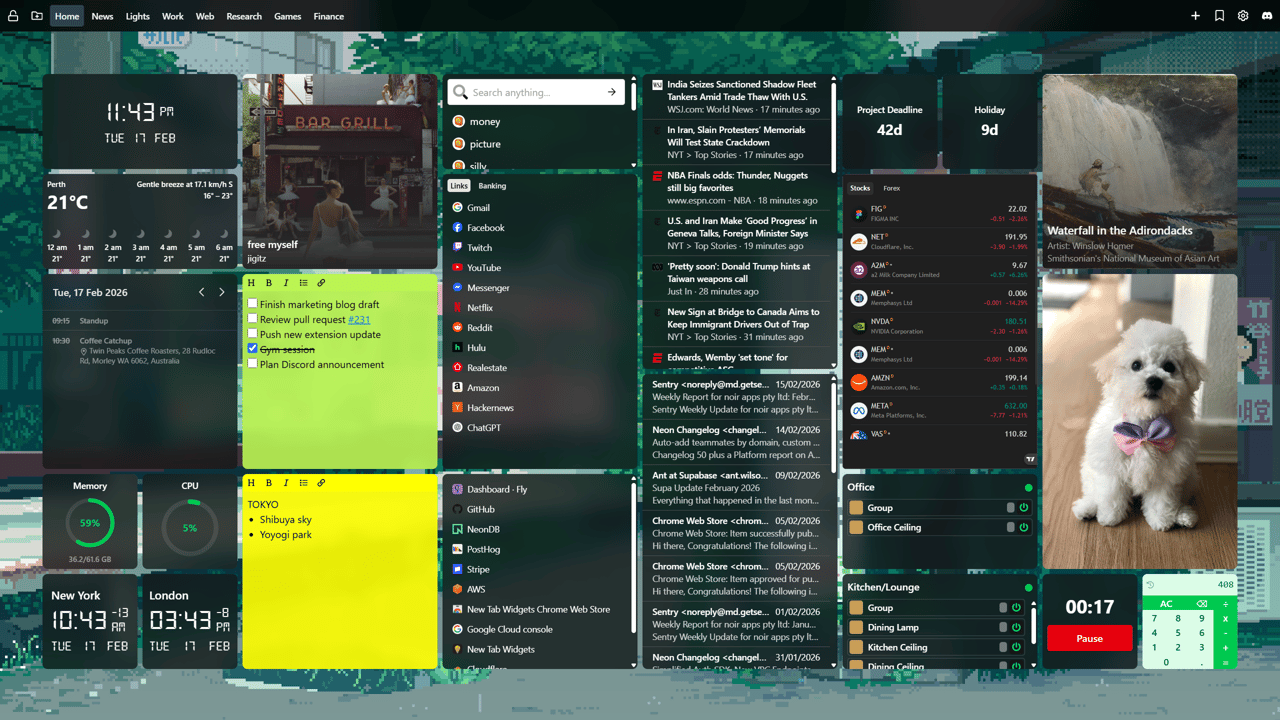
Why Remote Workers Need Custom New Tab Widgets
Remote work amplifies the importance of your browser setup. Unlike an office where information might be on a whiteboard or a coworker's desk, everything you need is digital—and usually buried in tabs.
A well-configured new tab page:
- Reduces context switching by showing multiple information sources at once
- Saves time with one-click access to essential tools
- Improves focus by eliminating tab-hunting distractions
- Keeps you organized with visible reminders and schedules
- Creates work-life boundaries by switching between different page setups
Think of it as your digital workspace—intentionally designed for how you actually work.
Essential Widgets Every Remote Worker Should Use
1. Calendar Widget: Never Miss a Meeting
Remote work runs on meetings: standup, 1-on-1s, client calls, team syncs. Missing one because you forgot to check your calendar is embarrassing and avoidable.
Why you need it:
- See your schedule at a glance every time you open a tab
- Know when your next meeting starts without opening Gmail or Calendar
- Plan deep work blocks around meeting-free time
- Avoid double-booking yourself
Best for: Anyone with 3+ meetings per day, especially across time zones.
Pro tip: Size it to show at least the next 3-4 events. Anything more becomes visual clutter.
2. Email Inbox Widget: Stay on Top of Messages
Email is still the primary communication channel for most remote teams. But constantly checking your inbox is a productivity killer.
Why you need it:
- See urgent messages without opening Gmail
- Identify which emails actually need immediate attention
- Reduce the temptation to constantly refresh your inbox
- Spot important threads before they get buried
How to use it effectively:
- Don't read every email from the widget (just scan for urgency
- Use it as a triage tool (urgent, important, or ignore)
- Check it at designated times (e.g., hourly) rather than constantly
Best for: People who need to stay responsive but want to avoid living in their inbox.
3. Sticky Notes Widget: Capture Quick Thoughts
Remote work is full of interruptions—Slack messages, impromptu calls, quick questions from teammates. A sticky note widget acts as your scratch pad for ideas that pop up mid-task.
Why you need it:
- Jot down thoughts without losing focus on your current work
- Keep urgent to-dos visible (like "submit expense report by Friday")
- Store quick reference info (meeting codes, phone numbers, project IDs)
- Free your mind from remembering small details
Best uses:
- Current day's top 3 priorities
- Important links or credentials you need frequently
- Running notes during meetings
- Random ideas that need to be captured fast
Best for: Knowledge workers who juggle multiple projects and need to externalize their thinking.
4. Quick Links Widget: One-Click Access to Tools
Remote workers use a lot of tools—Slack, Zoom, Google Drive, Figma, Notion, Jira, whatever your company uses. Typing URLs or searching bookmarks wastes time.
Why you need it:
- Launch work apps with a single click
- Group links by project or context (e.g., "Client A," "Marketing," "Team Tools")
- Reduce cognitive load by organizing everything visually
- Onboard faster when starting at a new company
Essential links to include:
- Team communication (Slack, Teams, Discord)
- Video conferencing (Zoom, Google Meet, Microsoft Teams)
- Project management (Asana, Trello, Jira, Monday.com)
- Documentation (Notion, Confluence, Google Drive)
- Time tracking (Toggl, Harvest, Clockify)
- Company-specific tools
Best for: Anyone working with 5+ different web tools daily.
5. Weather Widget: Know Before You Go
When you're working from home, it's surprisingly easy to lose track of what's happening outside. The weather widget isn't just about knowing the temperature—it's about life outside work.
Why remote workers need it:
- Plan lunch breaks (is it nice enough to eat outside?)
- Prepare for end-of-day errands (do I need an umbrella?)
- Maintain awareness of the world beyond your screen
- Make better decisions about stepping away from work
Mental health bonus: Seeing sunny weather can remind you to take a break and get some vitamin D. Seeing rain can help you feel better about staying inside.
Best for: Anyone prone to staying inside for days without realizing it.
6. Timer Widget: Structure Your Day
Without the structure of an office, remote workers need to create their own rhythms. A timer widget helps enforce focused work sessions and regular breaks.
Why you need it:
- Use the Pomodoro Technique (25 minutes on, 5 minutes off)
- Track time spent on tasks or projects
- Remind yourself to stand, stretch, or step away
- Create accountability when working independently
How to use it:
- Set 25-minute timers for deep work
- Use 5-minute timers for quick email checks
- Track billable hours if you're freelancing
- Time your morning routine to stay on schedule
Best for: Remote workers who struggle with time management or need to track billable hours.
7. RSS Feed Widget: Stay Informed, Not Overwhelmed
Remote workers need to stay updated on industry news, competitor updates, and team announcements. But constantly checking news sites is distracting.
Why you need it:
- Aggregate news from multiple sources in one place
- Catch important updates without active searching
- Schedule "information intake" during breaks, not work time
- Follow blogs, podcasts, and niche sources relevant to your work
What to subscribe to:
- Industry news sites
- Company blogs (yours and competitors)
- Internal team blogs or announcements
- Productivity and remote work advice
- Tech news if you're in a technical role
Best for: People who need to stay informed but don't want to fall into the news-reading rabbit hole.
8. Spotify Widget: Control Your Focus Music
Music can make or break your focus. The Spotify widget lets you control your soundtrack without context-switching.
Why remote workers love it:
- Skip tracks without leaving your work tab
- Pause music when a surprise call comes in
- See what's playing without opening Spotify
- Keep your focus flow uninterrupted
Best playlists for remote work:
- Lo-fi hip hop for concentration
- Classical music for deep thinking
- Nature sounds for calm productivity
- Upbeat music for repetitive tasks
Best for: Anyone who works better with background music.
9. Search Bar Widget: Universal Quick Access
Remote workers search constantly—documentation, Stack Overflow, company wikis, Google Drive. A search widget with multiple engines saves clicks.
Why you need it:
- Switch between search engines instantly (Google, DuckDuckGo, company intranet)
- Quick-search your most-used tools (GitHub, Jira, Drive)
- Reduce friction when looking up information
- Avoid having to navigate to search pages manually
Best for: Developers, researchers, and anyone doing frequent information lookups.
10. Custom Website Embed (iFrame Widget) – Your Own Tools
Advanced remote workers can embed entire web apps directly into their new tab. Perfect for custom dashboards or tools you check constantly.
What you can embed:
- Grafana or Datadog dashboards (DevOps/SRE)
- Internal admin panels
- Customer support ticket systems
- Analytics dashboards
- Project status pages
- Server monitoring tools
Best for: Developers, DevOps engineers, and technical roles with custom internal tools.
Remote Worker Dashboard Examples
The Manager's Dashboard
Perfect for team leads who need to stay on top of meetings and communications:
- Calendar (large, center): See all meetings at a glance
- Email (left side): Triage urgent messages
- Sticky Notes (right side): Daily priorities and team reminders
- Links (bottom): Quick access to Slack, project docs, and team tools
- Weather (corner): Small but visible
Goal: Stay organized and responsive without drowning in tabs.
The Developer's Dashboard
Optimized for focused coding work with quick access to essential tools:
- Timer (top): Pomodoro sessions for deep work
- Sticky Notes (side): Current task, bugs to fix, or code snippets
- Links (prominent): GitHub, staging environment, docs, Stack Overflow
- Spotify (small): Background music control
- RSS Feed (bottom): Tech news from Hacker News, dev blogs
Goal: Minimize distractions and maintain flow state.
The Freelancer's Dashboard
Designed for independent workers juggling multiple clients:
- Calendar (top): Client meetings and deadlines
- Timer (prominent): Track billable hours
- Sticky Notes: Per-client tasks and priorities
- Links (organized by client): Client portals, project management tools
- Weather (visible): Plan breaks and errands
Goal: Stay organized across multiple projects and accurately track time.
The Designer's Dashboard
Focused on creativity and visual inspiration:
- Spotify (prominent): Control music for creative flow
- Links (large): Figma, Dribbble, Pinterest, client feedback tools
- Weather (visual): Inspire mood and breaks
- Sticky Notes: Project deadlines and feedback notes
- Clean background: Minimalist to avoid visual clutter
Goal: Balance inspiration with practical access to design tools.
Setting Up Your Remote Work Dashboard
Ready to build your ideal remote work hub? Here's how to get started:
Step 1: Install New Tab Widgets
- Go to the Chrome Web Store
- Click "Add to Chrome"
- Open a new tab to see the extension activate
Works with Chrome, Edge, Brave, and other Chromium browsers.
Step 2: Start with the Essentials
Don't try to build the perfect dashboard immediately. Start with 3-5 core widgets:
- Calendar
- Quick Links
- Sticky Notes
- One more based on your role (Timer, Weather, Spotify, etc.)
Step 3: Arrange for Your Workflow
Think about how you actually use these tools:
- Put frequently checked items in prominent positions (calendar center-top)
- Size widgets based on importance (bigger calendar, smaller weather)
- Group related items (all communication tools together)
- Leave breathing room – don't overcrowd
Step 4: Use It for a Week
Live with your setup for at least a week. Notice:
- Which widgets do you actually use?
- What information are you still searching for?
- What feels cluttered or unnecessary?
- What's missing?
Step 5: Refine and Iterate
Based on your usage:
- Remove widgets you never look at
- Add widgets for information you keep searching for
- Adjust sizes and positions
- Try different layouts
Your dashboard should evolve as your work does.
Remote Work Dashboard Tips
Do's:
- ✅ Size widgets based on how often you check them – Big calendar, small weather
- ✅ Create separate pages for work and personal – Clear boundaries help mental health
- ✅ Grant necessary permissions – Calendar and Email widgets need account access
- ✅ Use calming backgrounds – You'll see this page 100+ times per day
- ✅ Keep it intentional – Every widget should serve a purpose
Don'ts:
- ❌ Overload with too many widgets – More isn't better
- ❌ Ignore visual hierarchy – Important things should be prominent
- ❌ Set distracting backgrounds – Busy images hurt focus
- ❌ Forget to update it – Your needs change; your dashboard should too
- ❌ Make it someone else's setup – This is personal; customize for your workflow
Productivity Gains: What to Expect
Remote workers who optimize their new tab setup report:
Time Savings
- 3-5 minutes per hour by eliminating tab hunting
- 10-15 minutes per day from faster access to tools
- 30+ minutes per week from better meeting awareness
Focus Improvements
- Fewer interruptions from checking email/calendar
- Reduced cognitive load from tab management
- Better context retention during deep work
Organization Benefits
- Nothing falls through the cracks (visible reminders)
- Clear separation between work and personal
- Easier to maintain work boundaries
Bottom line: Most remote workers see noticeable productivity improvements within the first week.
Advanced Remote Worker Features
Once you've mastered the basics, explore these advanced options:
Multiple Dashboard Pages
Create separate pages for different contexts:
- Work Mode: Calendar, Email, Links, Notes
- Focus Mode: Timer, Spotify, minimal distractions
- Personal: Personal email, hobby links, RSS feeds
Switch between them with a single click.
Cloud Sync
Use the Pro version to sync your dashboard across devices:
- Same setup on desktop and laptop
- Access your links and notes anywhere
- Consistent experience across computers
- Background image choices sync too, except for locally uploaded background images
Keyboard Shortcuts
Power users can navigate widgets and pages using keyboard shortcuts for even faster access.
Comparison: Remote Work Solutions
| Feature | Default Chrome | New Tab Widgets | Bookmarks Bar |
|---|---|---|---|
| Calendar view | ❌ | ✅ | ❌ |
| Email preview | ❌ | ✅ | ❌ |
| Notes/Tasks | ❌ | ✅ | ❌ |
| Customizable | Limited | Full | Limited |
| Visual widgets | ❌ | ✅ | ❌ |
| Multiple pages | ❌ | ✅ | Limited |
| Cloud sync | ❌ | ✅ (Pro) | ✅ |
Real Remote Workers, Real Results
“This is what I've been looking for, for years!” — Kenneth Conomos, Pro member
“Beautiful and modern design with a simple and intuitive user interface. Haven't had any glitches or crashes.” — Kirk, Pro member
“Great addon for the way I use chrome with a lot of neat features” — Dennis Johansson
Start Your Remote Work Revolution
Remote work is here to stay. Your browser is your office. Make it work like one.
The right new tab widgets transform your browser from a pile of tabs into an organized, efficient command center. You'll spend less time searching, less mental energy managing tabs, and more focus on actual work.
Ready to upgrade your remote work setup?
🔗 Install New Tab Widgets from Chrome Web Store
Start with the essential widgets, use it for a week, and adjust based on your real workflow. Your future self (and your productivity) will thank you.